This guide explains how to add custom filters to data sources that send logs via syslog or other methods, especially when they aren’t covered in the standard integration documentation.
Custom filters allow you to parse, transform, and normalize logs from any data source, making them compatible with UTMStack’s correlation engine and analytics.

When to Use Custom Filters

Use custom filters when:
  • Your data source sends logs via syslog but doesn’t have a dedicated integration guide
  • You need to parse custom log formats
  • Standard filters don’t extract all the fields you need
  • You’re integrating a proprietary or uncommon system
  • You need to transform data before it reaches the correlation engine
Custom filters follow the same YAML-based format as standard filters. Review the Implementing Filters guide for syntax details.

Prerequisites

Before creating custom filters:
1

Configure Data Source

Ensure your data source is sending logs to UTMStack via:
  • 7014 TCP
  • 7014 UDP
2

Understand Log Format

Collect sample logs from your data source to understand:
  • Log structure (JSON, key-value, plain text)
  • Field names and values
  • Timestamp format
  • Important fields to extract
3

Review Filter Types

Familiarize yourself with available filter step types:
  • json - Parse JSON logs
  • grok - Parse unstructured text with patterns
  • kv (key-value) - Parse key=value format
  • cast - Convert field types
  • rename - Rename fields
  • Others covered in the filter documentation

Step-by-Step: Creating a Custom Filter

Step 1: Open Data Processing

1

Navigate to Data Processing

From the UTMStack main interface, locate the Data Processing option in the right sidebar menu.Data Processing MenuClick on Data Processing to open the data sources management page.
The Data Processing page displays all configured data sources with:
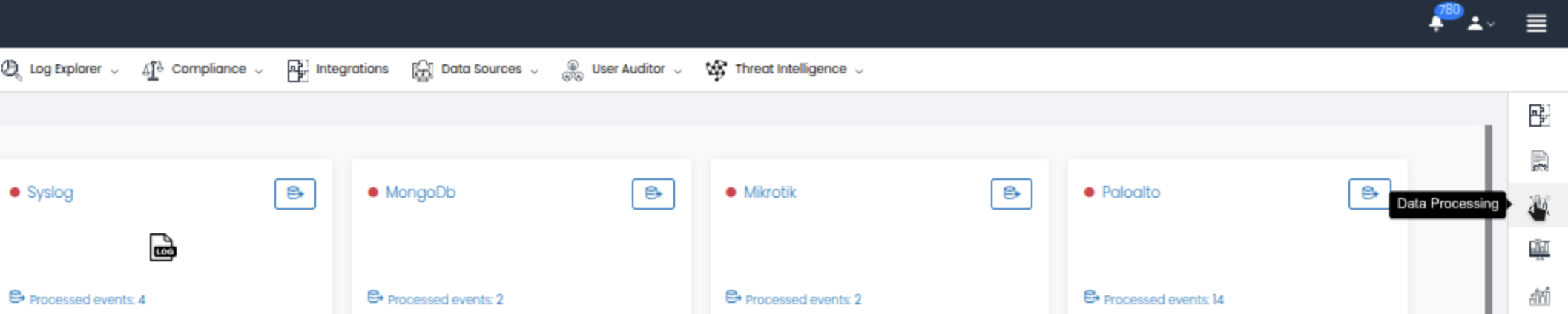
  • Data source name (e.g., Syslog, MongoDB, Mikrotik, Paloalto)
  • Status indicator (red dot = down, green = active)
  • Processed events count - Number of logs processed

Step 2: Select Your Data Source

1

Choose the Data Source

Locate the data source you want to add a custom filter to. Common sources include:
  • Syslog - Generic syslog receiver
  • Windows agent - Windows event logs
  • JSON input - Generic JSON receiver
  • Any other configured source
2

Click the Pipeline Button

Click the pipeline button (📋) next to your data source to open the pipeline editor.A modal will appear showing the Pipeline [Source] detail.

Step 3: View Current Pipeline

The pipeline detail modal displays: Data Sources List Information shown:
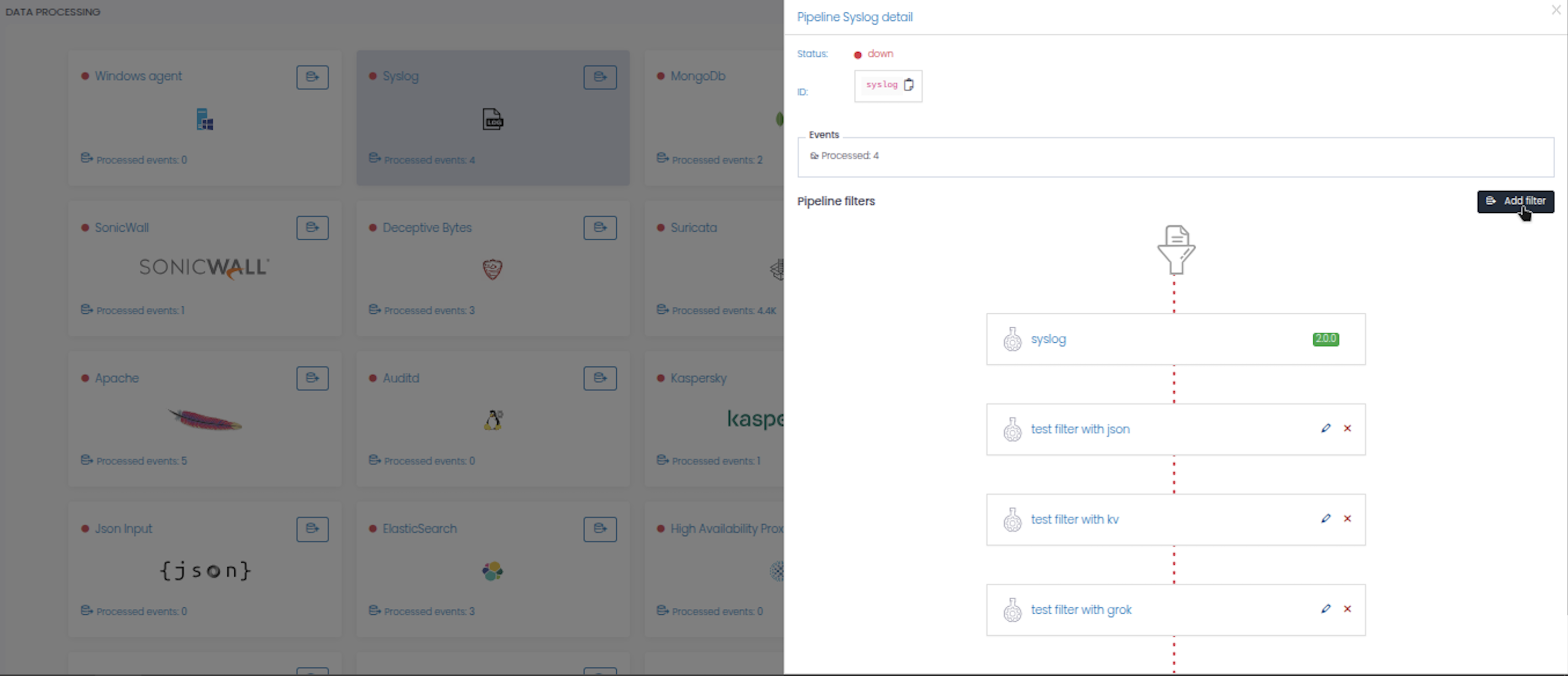
  • Status: Current state (up/down) with status indicator
  • ID: Unique identifier for the data source
  • Events: Number of processed events
  • Pipeline filters: List of existing filters in the processing pipeline
Pipeline Filters Section:
  • Shows filters in order of execution (top to bottom)
  • Each filter card displays:
    • Filter icon
    • Filter name
    • Status badge (e.g., “FAIL” in red, “PASS” in green)
    • Edit button (✏️)
    • Delete button (✖)
  • Filters are connected by dotted lines showing data flow

Step 4: Add New Filter

1

Click Add Filter

In the Pipeline filters section, click the Add filter button in the top right corner.
2

Open Log Filter Editor

The Log filter editor modal will appear with:Pipeline DetailFields:
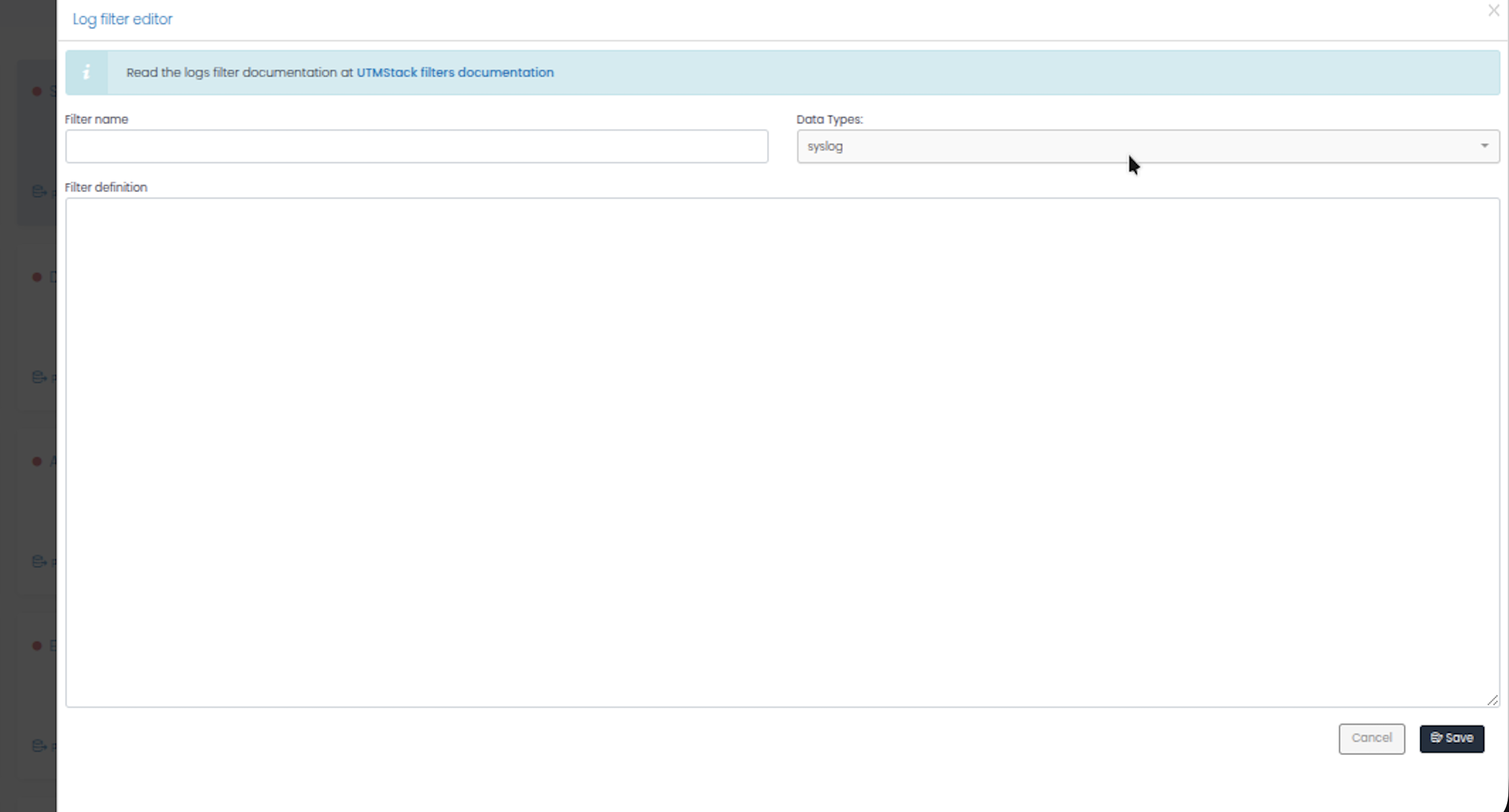
  • Information banner: Link to filter documentation at “UTMStack filters documentation”
  • Filter name: Text field for naming your filter
  • Data Types: Dropdown menu to select the log type (e.g., syslog, json, etc.)
  • Filter definition: Large text area for writing the YAML filter definition
  • Cancel and Save buttons

Step 5: Write Your Custom Filter

Now you’ll write the filter definition using YAML syntax.
You can write and test your filter locally in a text editor, then copy and paste it into the Filter definition field.

Filter Structure

The complete filter structure includes the pipeline wrapper, dataTypes, and steps:
pipeline:
  - dataTypes:
      - syslog      # Specify the data type(s) this filter applies to
    steps:
      - [filter-step-type]:
          # Configuration for this step
      - [next-filter-step]:
          # Configuration for next step
  • dataTypes: Array of data types this filter processes (e.g., syslog, json, windows)
  • steps: Array of filter operations to perform in sequence

Example 1: Analyze JSON system logs

pipeline:
  - dataTypes:
      - syslog
    steps:
      # Step 1: Parse the JSON content
      - json:
          source: message
          
      # Step 2: Extract timestamp
      - reformat:
          field: parsed.timestamp
          function: 'time'
          fromFormat: '2006-01-02T15:04:05Z07:00'
          toFormat: '2024-09-29T18:40:53 +0000'
          
      # Step 3: Rename fields to standard names
      - rename:
          fields:
            - from: parsed.src_ip
              to: source.ip
            - from: parsed.dst_ip
              to: destination.ip
            - from: parsed.username
              to: user.name
              
      # Step 4: Add source type tag
      - add:
          function: 'string'
          params:
            key: log.source.type
            value: 'my-custom-source'

Example 2: Analyze key-value system records

pipeline:
  - dataTypes:
      - syslog
    steps:
      # Step 1: Parse key-value pairs
       - kv:
          fieldSplit: " "
          valueSplit: "="
          source: message
          
      # Step 2: Cast fields to correct types
      - cast:
          field:
            - origin.port
          to: int
          
      # Step 3: Normalize IP addresses
      - rename:
          fields:
            - from: parsed.src
              to: source.ip
            - from: parsed.dst
              to: destination.ip

Example 3: Complex multi-step filter

pipeline:
  - dataTypes:
      - syslog
    steps:
      # Step 1: Extract the main log body from syslog wrapper
      - grok:
          patterns:
            - fieldName: syslog_parsed
              pattern: "%{SYSLOGTIMESTAMP:syslog_timestamp} %{HOSTNAME:syslog_hostname} %{GREEDYDATA:log_message}"
          source: message
          
      # Step 2: Parse the actual log message as JSON
      - json:
          source: syslog_parsed.log_message
                
      # Step 3: Normalize fields
      - rename:
          fields:
            - from: parsed.sourceAddress
              to: source.ip
            - from: parsed.destinationAddress
              to: destination.ip
            - from: parsed.protocol
              to: network.transport
              
      # Step 4: Convert field types
      - cast:
          fields:
            - parsed.bytes_sent
          to: int
          
      # Step 5: Add ECS-compliant fields
      - add:
          function: 'string'
          params:
            key: event.category
            value: 'network'
      - add:
          function: 'string'
          params:
            key: event.type
            value: 'connection'
      - add:
          function: 'string'
          params:
            key: log.source.type
            value: 'custom-firewall'
            
      # Step 6: Adding geolocation
      - dynamic:
          plugin: com.utmstack.geolocation
          params:
            source: origin.ip
            destination: origin.geolocation
          where: exists("origin.ip")

Example 4: Common filter patterns - Cisco ASA Syslog

pipeline:
  - dataTypes:
      - firewall-cisco-asa
    steps:
      - grok:
          patterns:
            - fieldName: log.syslogPri
              pattern: '(\<{{.integer}}\>)'
            - fieldName: log.ciscoTime
              pattern: '({{.day}}\s)?{{.monthName}}\s{{.monthDay}}\s{{.year}}\s{{.time}}'
            - fieldName: log.localIp
              pattern: '{{.ipv4}}|{{.ipv6}}|{{.hostname}}'
            - fieldName: log.asaHeader
              pattern: '{{.data}}ASA-'
            - fieldName: log.severity
              pattern: '{{.integer}}'
            - fieldName: log.messageId
              pattern: '-{{.integer}}'
            - fieldName: log.ciscoSeparator
              pattern: '\:{{.space}}'
            - fieldName: log.msg
              pattern: '{{.greedy}}'
          source: raw
          
      - rename:
          fields:
            - from: cisco.src_ip
              to: source.ip
            - from: cisco.dst_ip
              to: destination.ip
            - from: cisco.src_port
              to: source.port
            - from: cisco.dst_port
              to: destination.port
              
      - add:
          function: 'string'
          params:
            key: event.module
            value: 'cisco.asa'
      - add:
          function: 'string'
          params:
            key: event.category
            value: 'network'

Filter Best Practices

Normalize field names to the Elastic Common Schema (ECS) standard:Network Fields:
  • source.ip, destination.ip
  • source.port, destination.port
  • network.bytes, network.packets
  • network.transport (tcp, udp, icmp)
User Fields:
  • user.name, user.domain
  • user.email
Event Fields:
  • event.category (network, authentication, file, etc.)
  • event.type (start, end, denied, allowed)
  • event.outcome (success, failure)
Process Fields:
  • process.name, process.pid
  • process.command_line
This ensures compatibility with UTMStack correlation rules and dashboards.
Always account for logs that might not match your pattern:
- json:
    source: message
    target: parsed
    on_error: skip  # Don't fail entire pipeline if JSON is invalid
    
- grok:
    source: message
    pattern: "%{PATTERN}"
    on_error: drop  # Drop logs that don't match pattern
Options:
  • skip - Continue processing without this step
  • drop - Discard the log entirely
  • log - Log the error but continue
Before deploying filters to production:
  1. Collect real log samples from your data source
  2. Test filter against various log formats and edge cases
  3. Check for logs with:
    • Missing fields
    • Different timestamp formats
    • Special characters
    • Unexpected values
  4. Verify performance with high log volumes
Handle different log formats from the same source:
- condition:
    if: 'contains(message, "JSON")'
    then:
      - json:
          source: message
          target: parsed
    else:
      - kv:
          source: message
          target: parsed
Always tag logs with their source for easier filtering:
- add:
    function: 'string'
    params:
      key: log.source.type
      value: 'custom-firewall'
- add:
    function: 'string'
    params:
      key: log.source.vendor
      value: 'acme-corp'
- add:
    function: 'string'
    params:
      key: event.module
      value: 'firewall'
Keep the original log message for troubleshooting:
- rename:
    fields:
      - from: message
        to: original_message
Or use a dedicated field:
- add:
    function: 'string'
    params:
      key: log.original
      value: '{{message}}'

Troubleshooting

Cause: Syntax error or invalid YAMLSolution:
  1. Click the edit button (✏️) to reopen the filter
  2. Check YAML syntax:
    • Proper indentation (2 spaces)
    • Correct field names
    • Valid filter step types
  3. Validate against the filter documentation
  4. Test with a simple filter first, then add complexity
Possible Causes:
  • Data source not sending logs
  • Firewall blocking syslog port
  • Wrong port configuration
  • Filter dropping all logs
Solution:
  1. Verify data source is sending logs:
    tcpdump -i any port 514
    
  2. Check firewall rules allow syslog traffic
  3. Test with netcat:
    echo "test message" | nc -u utmstack-ip 514
    
  4. Temporarily remove filters to see if logs arrive
Solution:
  1. Review sample logs to verify format matches your pattern
  2. Use simpler patterns first, then refine
  3. Test grok patterns at https://grokdebugger.com
  4. Check for special characters that need escaping
  5. Verify source field name in each filter step
Causes:
  • Complex regex patterns
  • Too many filter steps
  • Inefficient grok patterns
Solution:
  1. Simplify grok patterns - use specific patterns instead of GREEDYDATA
  2. Combine multiple rename operations into one step
  3. Remove unnecessary processing steps
  4. Consider using json parsing instead of grok when possible
  5. Add conditions to skip unnecessary processing
Solution:
  1. Verify the timestamp format string matches your logs exactly
  2. Common Go time formats:
    • ISO8601: 2006-01-02T15:04:05Z07:00
    • RFC3339: 2006-01-02T15:04:05Z07:00
    • Custom: 2006-01-02 15:04:05
  3. Ensure timezone is included or use UTC
  4. Reformat timestamp explicitly:
    - reformat:
        field: parsed.time
        function: 'time'
        fromFormat: '2006-01-02 15:04:05'
        toFormat: '2024-09-29T18:40:53 +0000'
    

Testing Your Filter

Method 1: Use Log Explorer

  1. Go to Log Explorer in UTMStack
  2. Filter by your data source: log.source.type: "your-source"
  3. Examine a few logs to verify:
    • All expected fields are present
    • Values are correct
    • Types are appropriate (numbers not strings)
    • Timestamps are accurate

Method 2: Export and Inspect

  1. In Data Processing, click the export button for your source
  2. Review the filter configuration
  3. Validate YAML syntax with an online validator

Method 3: Check Pipeline Status

  1. Monitor the pipeline detail modal
  2. Look for filter status indicators
  3. Check processed event counts increase
  4. Watch for error messages

Advanced Topics

Using Go Modules in Filters

Some filter types support Go module functions:
pipeline:
  - dataTypes:
      - syslog
    steps:
      - script:
          lang: go
          source: |
            // Custom Go code for complex transformations
            if strings.Contains(message, "ERROR") {
              severity = "high"
            }
See the Implementing Filters guide for Go module references.

Conditional Processing

pipeline:
  - dataTypes:
      - syslog
    steps:
      - condition:
          if: 'log.level == "ERROR"'
          then:
            - add:
                function: 'integer'
                params:
                  key: event.severity
                  value: 3
          else:
            - add:
                function: 'integer'
                params:
                  key: event.severity
                  value: 1

Multi-Source Pipelines

For sources receiving multiple log formats:
pipeline:
  - dataTypes:
      - syslog
    steps:
      # Try JSON first
      - json:
          source: message
          target: parsed
          on_error: skip
          
      # If JSON failed, try key-value
      - condition:
          if: "!has(parsed)"
          then:
            - kv:
                source: message
                target: parsed
                
      # If both failed, use grok
      - condition:
          if: "!has(parsed)"
          then:
            - grok:
                source: message
                pattern: "%{GREEDYDATA:parsed.message}"
For assistance with custom filters, consult the UTMStack community or contact support at [email protected]

Next Steps