

API Keys are an alternative authentication method to user credentials, ideal for integrations, automation scripts, and third-party applications.
Accessing API Keys Management
Navigate to Settings
From the UTMStack main interface, click on the Settings menu in the left sidebar.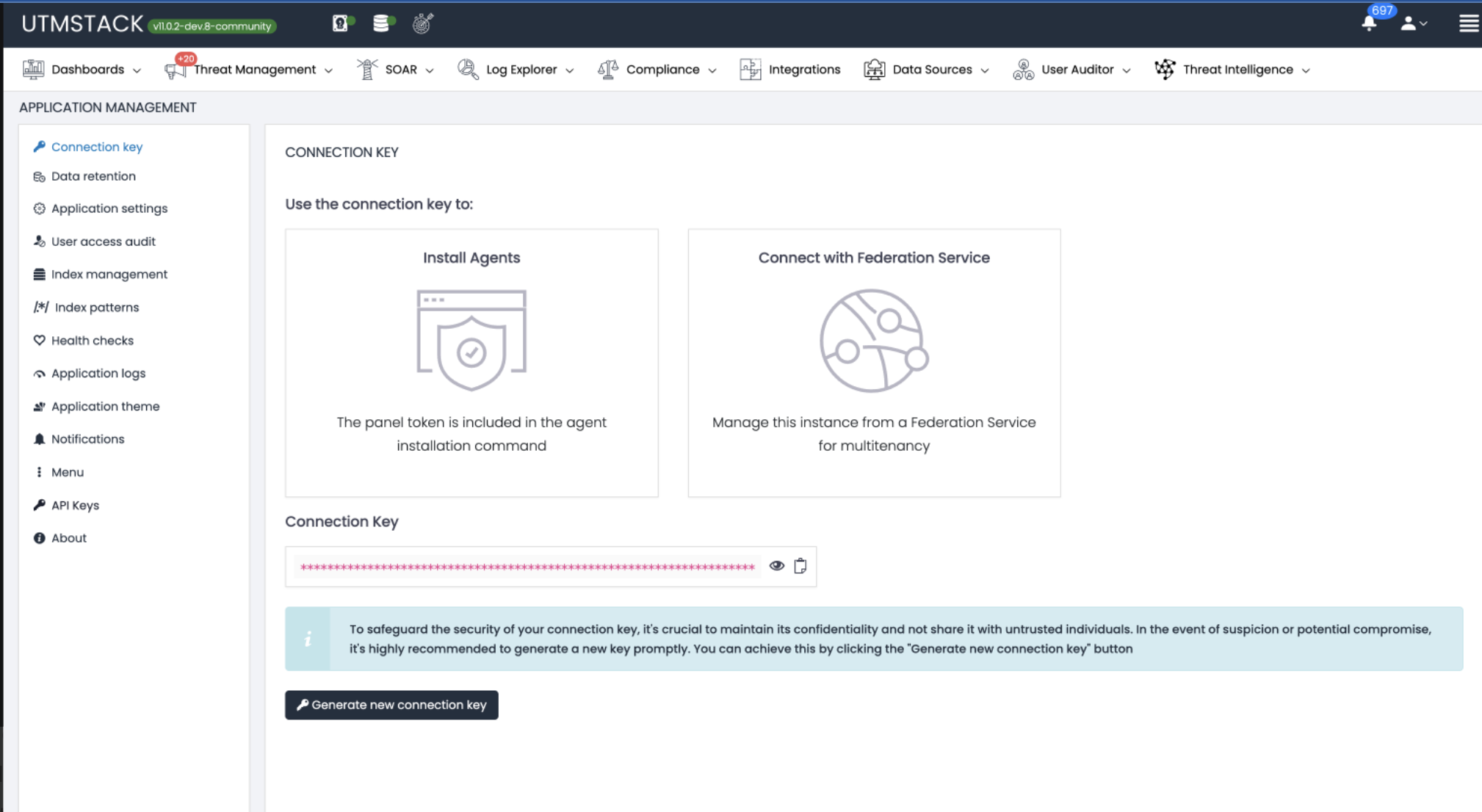
Open Connection Keys Section
Select Connection Keys from the settings menu to access the Connection Keys management page.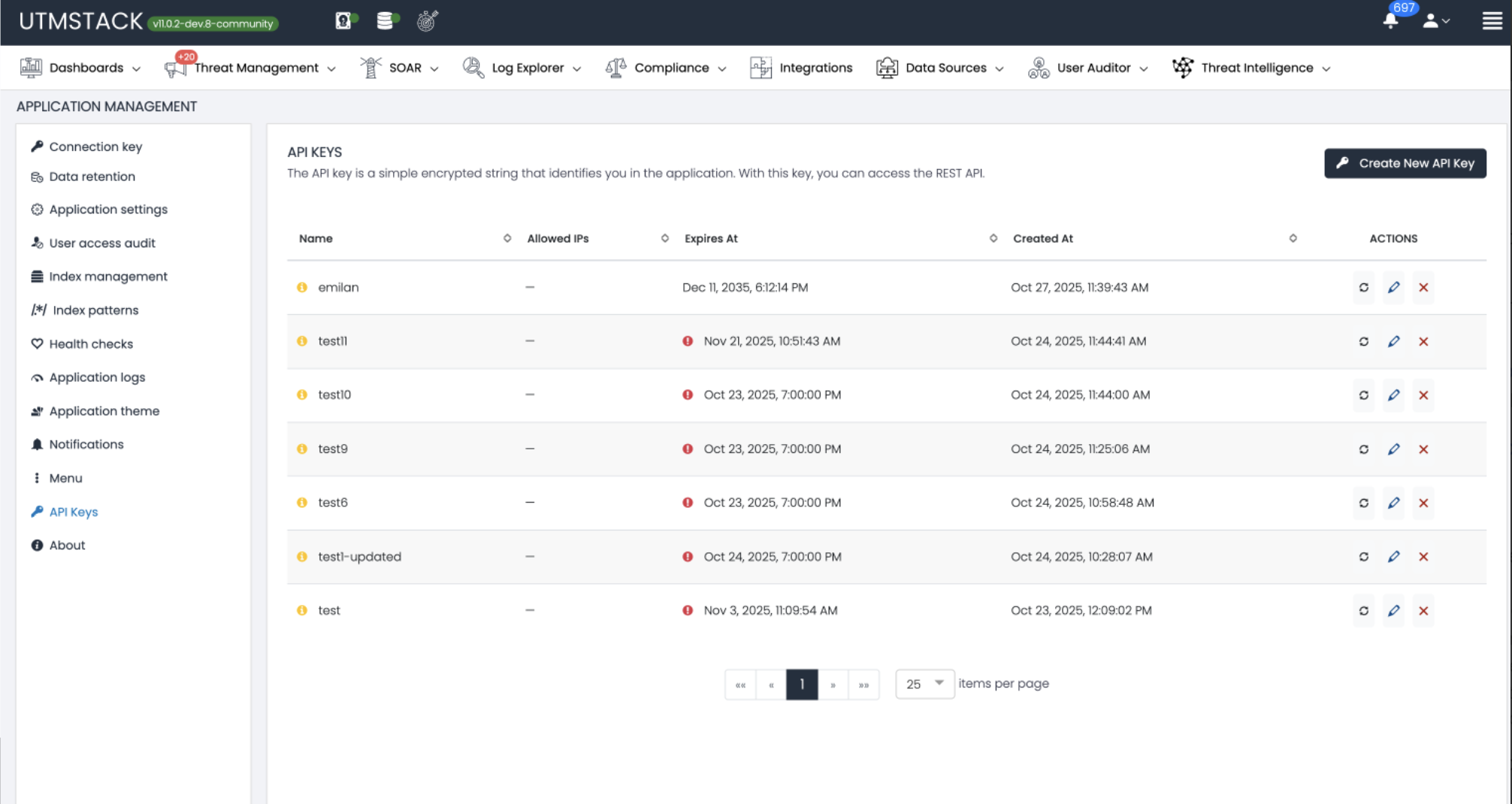
- Name: Descriptive name of the API key
- Created At: Timestamp when the key was created
- Expires At: Expiration date and time
- Status indicators: Red icon for expired or problematic keys, green for active
- Actions: Icons to view details, regenerate, or delete each key
- Pagination: Navigate through multiple pages of API keys at the bottom
Creating a New API Key
Click Create API Key
On the API Keys page, locate and click the Create Api Key button in the top right corner.
The button is positioned above the API keys table for easy access.
Configure API Key Details
A modal dialog titled “Create Api Key” will appear with the following fields:
Name
Enter a descriptive name for your API key (e.g., “Integration Agent”, “Monitoring Script”, “Test”).Set Expiration Date
Click the calendar icon next to “Expires At” to open the date picker.Select a future date when the API key should expire (e.g.,
2035-11-01).Best Practices:- Set shorter expiration periods for testing or temporary integrations (30-90 days)
- Use longer periods (e.g., 1 year) for production integrations
- Regularly rotate API keys before expiration for enhanced security
Expired keys will be automatically disabled and cannot be used for authentication. You’ll need to regenerate them.
Configure Allowed IPs (Security)
In the “Allowed IPs” field, add IP addresses or CIDR ranges that are permitted to use this API key.Input Format:
- Type or paste an IP address or CIDR notation
- Click the plus icon (⊕) to add it to the allowed list
- Example placeholder:
Add IP address or CIDR (e.g., 192.168.1.0/24)
- Single IP:
192.168.1.10 - CIDR Range:
192.168.1.0/24 - Multiple entries: Add each IP/CIDR separately by clicking the plus icon
Copy and Secure Your API Key
After clicking Create Api Key, a success dialog titled “Generated Api Key” will appear displaying your newly created API key.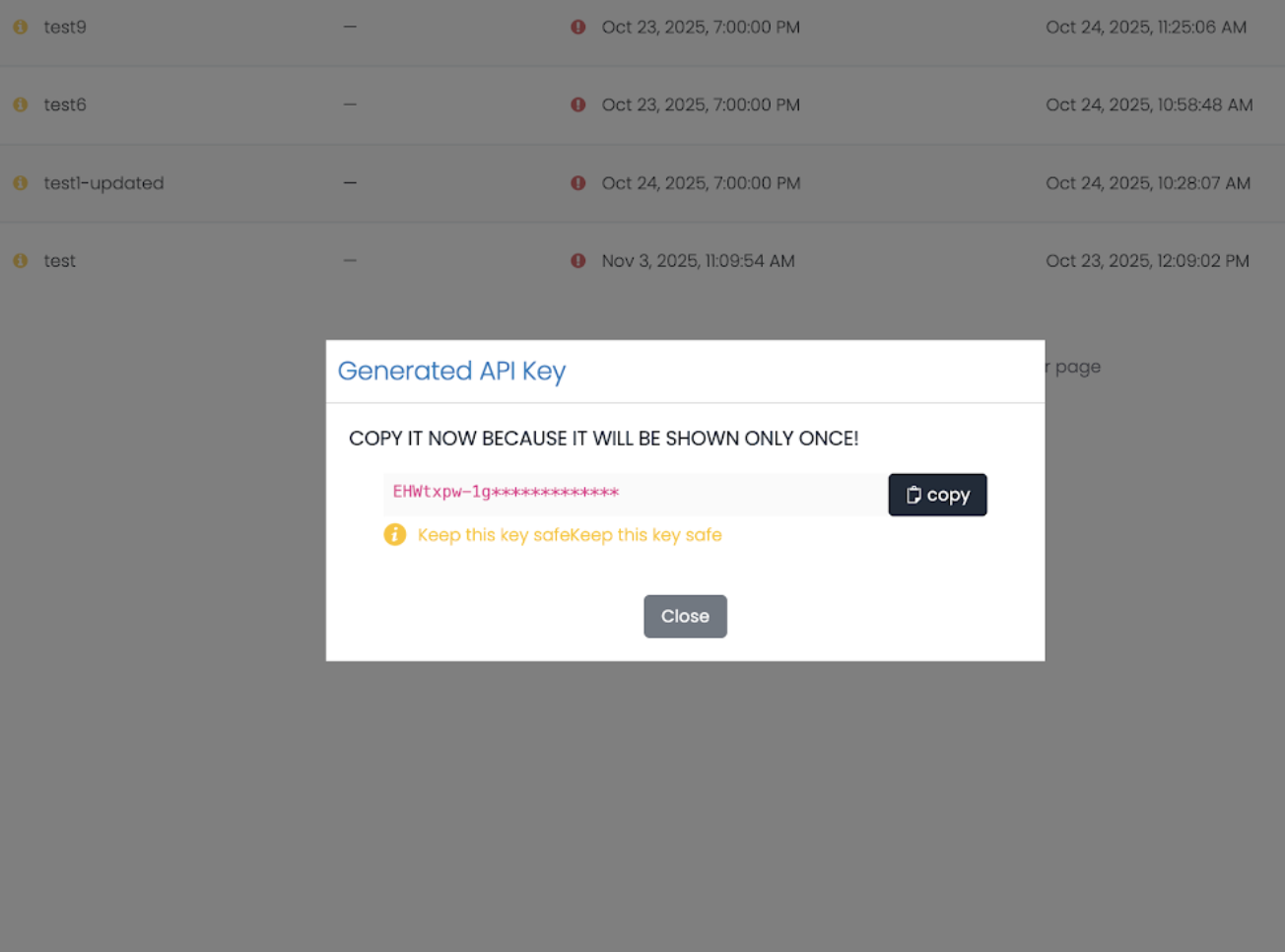
- A message: “COPY YOUR API KEY AS IT WILL BE SHOWN ONLY ONCE”
- The API key value (partially masked with dots:
••••••••) - A Copy button to copy the key to your clipboard
- A Close button
Managing Existing API Keys
View API Key Details
Click on any API key in the list to view its details:- Name
- Creation date
- Expiration date
- Allowed IP addresses
- Last used timestamp
Regenerate an API Key
If an API key is compromised or needs to be rotated:Delete an API Key
To permanently remove an API key:Security Best Practices
Restrict by IP Address
Restrict by IP Address
Always configure allowed IP addresses or CIDR ranges for each API key. This prevents unauthorized use if a key is compromised.Example:
- Development:
192.168.1.0/24(internal network only) - Production:
203.0.113.10(specific server IP) - Cloud: Use your cloud provider’s outbound IP ranges
Use Short Expiration Periods
Use Short Expiration Periods
Set appropriate expiration dates based on use case:
- Testing/Development: 30-90 days
- Production: 6-12 months
- Temporary integrations: As short as needed
Store Keys Securely
Store Keys Securely
Never store API keys in:
- Source code repositories
- Configuration files committed to version control
- Plain text files on disk
- Browser local storage
- Environment variables
- Secret management services (HashiCorp Vault, AWS Secrets Manager)
- Encrypted configuration stores
- Password managers (for manual testing)
Use Descriptive Names
Use Descriptive Names
Name API keys clearly to indicate their purpose and owner:
- ✅ “Production-SIEM-Integration-Server-01”
- ✅ “Dev-Testing-John-Temp”
- ✅ “Monitoring-Script-Nagios”
- ❌ “Test”
- ❌ “Key1”
Monitor API Key Usage
Monitor API Key Usage
Regularly review:
- Active API keys and their purpose
- Last used timestamps
- Keys approaching expiration
- Unused or forgotten keys (delete them)
- Failed authentication attempts
- Keys used from unexpected IP addresses
- Keys approaching expiration
Principle of Least Privilege
Principle of Least Privilege
Create separate API keys for different purposes:
- One key per application/integration
- One key per environment (dev, staging, production)
- Different keys for different teams
Immediate Revocation
Immediate Revocation
If you suspect a key has been compromised:
- Immediately regenerate or delete it
- Review access logs for suspicious activity
- Update all legitimate applications with the new key
- Investigate the potential security incident
API Key Lifecycle Management
Recommended Workflow
Configure Security Settings
- Set appropriate expiration date
- Add allowed IP restrictions
- Use descriptive name
Securely Distribute
Store the key in a secure location and share only with authorized personnel through secure channels.
For enterprise support with API integrations or custom development, contact the UTMStack support team at support@utmstack.com